Every event on Kapwa gets a shareable link. The invitation builder is how you make that link look like something worth opening.
When guests receive your invite, the first thing they see is the banner image at the top of the event page. The invitation builder lets you create that image directly in Kapwa -- no Canva, no Photoshop, no design experience required.
Where to find it
From your event overview, click "Invites" in the left sidebar.
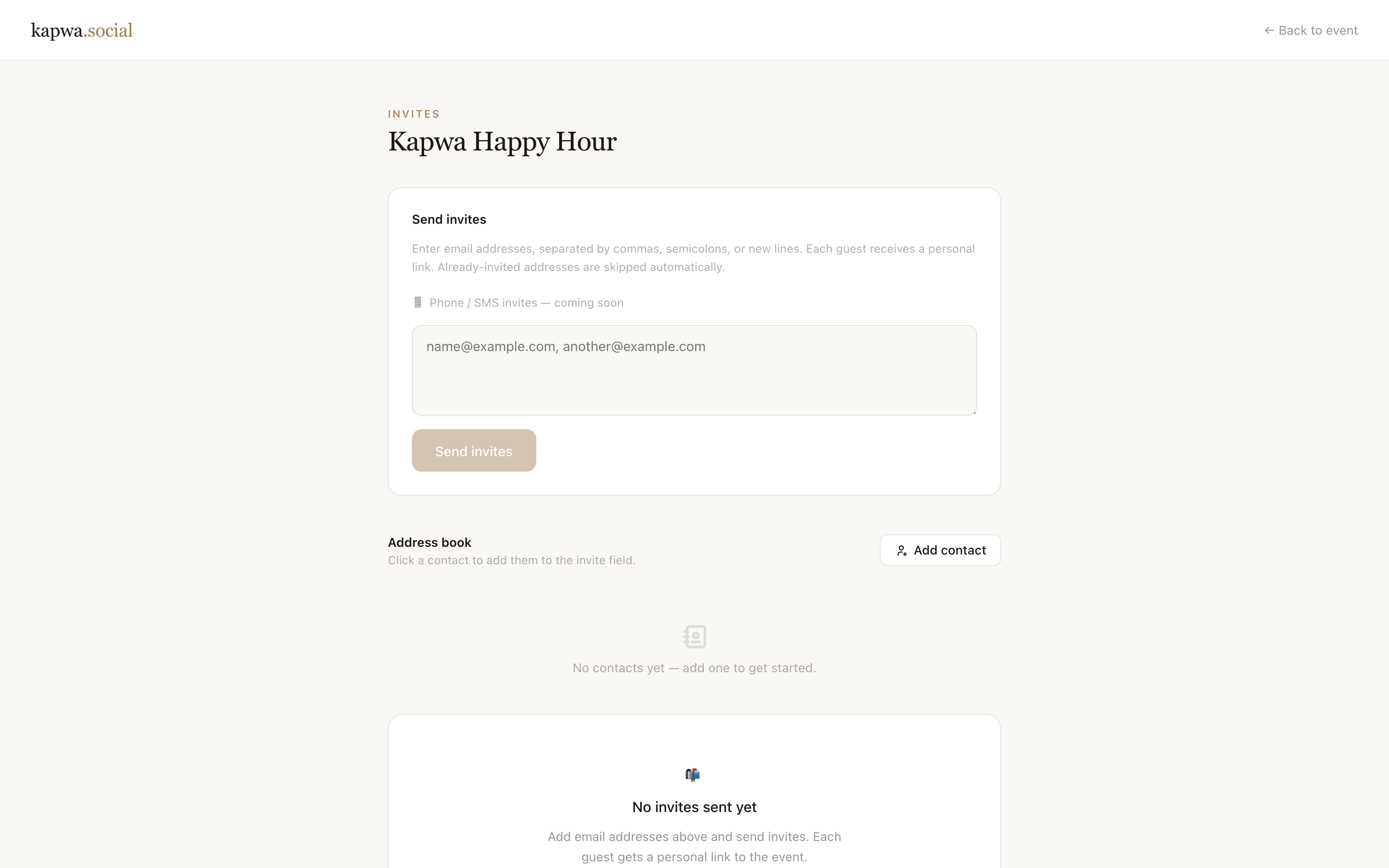
The builder opens with your current banner (or a default scene if you have not set one yet). Everything you change is reflected in the preview on the right in real time.
Picking a scene
The scene is the background of your invitation. Kapwa includes a set of scenes organized by mood and event type -- warm tones for celebrations, softer palettes for baby showers and bridal events, bolder options for birthdays and bachelorettes.
Click any scene thumbnail to preview it on your invite. The color palette shown below the scene is automatically pulled from that scene and applied to your event theme.
Adding your event details
The text overlay pulls from your event settings by default -- your event name, date, and location appear automatically. You can adjust the layout and text size in the builder.
If you want to add a custom tagline or personal message, use the "Additional text" field below the scene selector.
Customizing the accent color
The accent color controls the color of the text overlay and the button on your invite. Kapwa picks a starting color from the scene you chose, but you can adjust it using the color picker or enter a hex code directly.
Tip: if you have a color from your party decorations or a brand you like, entering the exact hex value keeps everything consistent.
Saving and sharing
When you are happy with the design, click "Save banner." Your invite link immediately reflects the new design.
The same banner image is also used as the preview thumbnail when your link is shared on iMessage, Instagram DMs, or anywhere else that shows link previews. That means the first impression guests get before they even open the link is your custom banner.
Uploading your own image
If you already have a photo or graphic you want to use, click "Upload your own" at the top of the scene panel. Your uploaded image replaces the scene as the background, but you keep all the text overlay options.
This is useful if you have an existing invitation design, a photo from a venue, or a branded graphic you want to use as the base.
Next step: If you want to take the design further, the theme builder lets you set custom colors for the entire guest experience -- not just the banner. See what is the theme builder and how to use it for a full walkthrough.